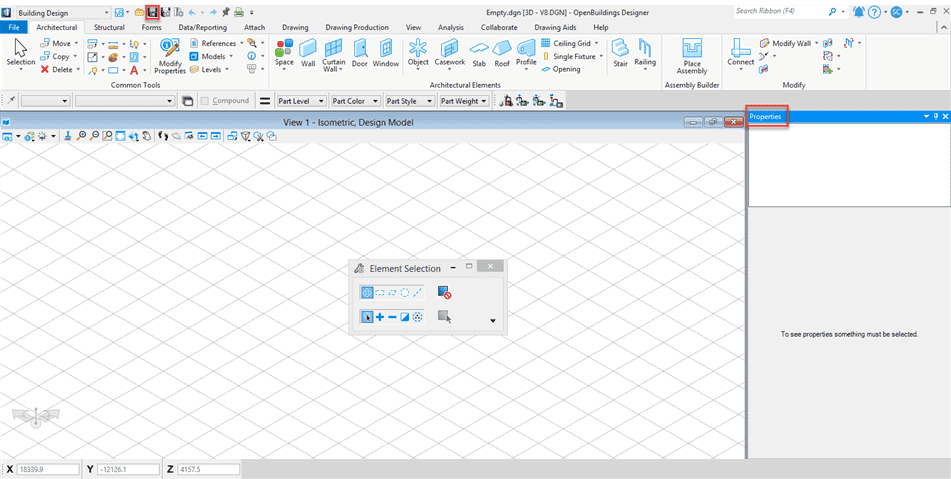
OpenBuildings Designer: Solve Launch Blocking Caused by Ingrained Properties dialog box
Problem
When I anchored the Properties dialog box, it may not appear after opening a DGN file in OpenBuildings Designer. Instead, the application continues to load and blocks any other action. After waiting at least several minutes, the Properties dialog box sometimes appears, and other times, OpenBuildings Designer simply blocks. How can I solve this?
Solution
Introduction note : It should be noted that the Properties dialog box may cause some slowing of the application: it is best to display it only if necessary.
The location and/or content of the local schema mapping file may be a problem. This file maps the data from the native DataGroup schema of OpenBuildings Designer to the CE MicroStation schema so that the Properties dialog box (a MicroStation tool) can display these properties. Normally, you can check the BB_DG_ECSCHEMA_CACHE configuration variable to see if it is set, and if so, where it is pointing. The default location is ..WorkSpacesBuilding_ExamplesworksetsBuildingTemplate_NameStandardsSettingBuildingDataGroup.01.00.ecschema.xml.

However, if you have anchored the MicroStation Properties dialog box and openbuildings Designer blocks, it can be difficult, if not impossible, to check the variable. So, in this case, you will want to run OpenBuildings Designer and immediately create a new empty file that should allow the product to open. Once OpenBuildings Designer is open, you can check where the variable points, then, if necessary, rename the existing file to this location so that OpenBuildings Designer creates a new version.

Once this operation is complete, you can re-anchoring the Properties dialog box, save settings and exit OpenBuildings Designer.