


Solve the disappearance of elements in a view promoted in OpenBuildings Designer
Problem
In some dgn files, some elements disappear in a promoted view. This problem can occur if the elements exist in a model that can be placed as a cell. In a dgn file that includes many reference files, this problem can occur more often and it can be difficult to locate the reference file where this missing element is located. Here is the workflow by which these missing elements can be made visible in a promoted view.
Solution
Step 1
Go to "Retrograde View" and right click on the missing slab in the promoted view.
From the context menu, select "Exchange" which will display the available reference files. From these files, select the one where the slab exists.


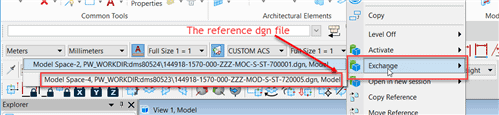
Step 2
After accepting the selection, the reference file will open.

Step 3
Click on the icon "Models” :
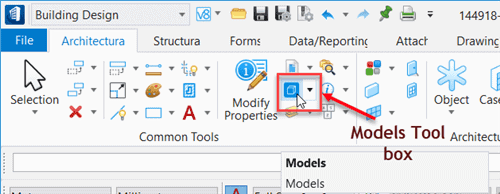
Step 4
In the templates, the dialog box removes the checkmark from the box "Is a cell" (Note: In most cases it is not useful that the box « Is a cell » checked).


Step 5
In the quick access toolbar of the ribbon, click on the icon "Save Settings” (1), then click the button "Return” (2) :

Step 6
This will bring you back to the previous dgn file. In the dialog "Show Attributes", click on the button "Promoting vision" and note that the missing slab is now visible.

