How to select elements outside the solids work area in MicroStation
Background
Solid Working Area (SWA) tools are used to manage the work area of building elements in a safe range from the origin of a model, thus providing a consistent result in dynamic views. Tools help control drawing elements in the designated work area when modeling outside the SWA.
Solution
Below you will find the path to follow to select items outside the solids work area
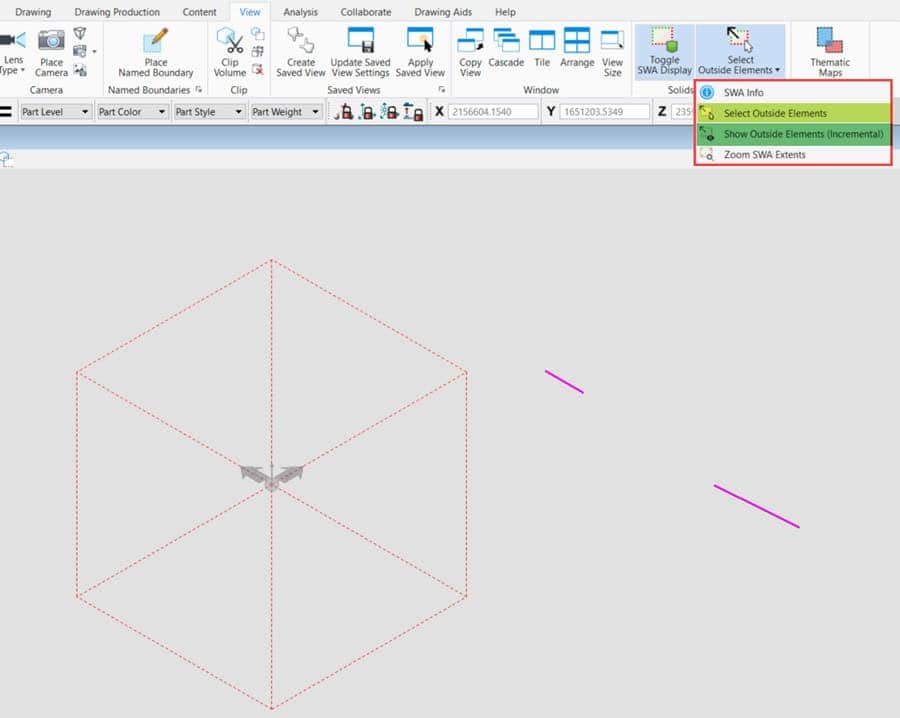
1. Clicking on Toggle SWA under the tab View, we can see the cubic box of the solid work area of the current model in the view.

Note – Toggle on ON draws a volume encompassing red or green to visualize the SWA. Red indicates that there are elements outside the SWA. The green indicates that there is no element outside the SWA.
Toggle on OFF, mask the encapsulating volume.
2. Then click on Select External Elements under the View tab which is used to select all items outside the solids work area.
Another option is: Display external elements (Incremental) that displays the elements outside the solids work area, one by one (each, adapted to the view) during the tool repeat.