


How to remove the large grey window that appears in front of OpenBuildings Designer on startup
Problem
After launching OpenBuildings Designer, a large grey window appears in front of the main application.

If I close this window, OpenBuildings Designer also closes. I don't remember this happening before and I don't know how to correct it.
Solution
You will notice that the main window of the application has one (1) in the title bar while the grey window in front has one (2).
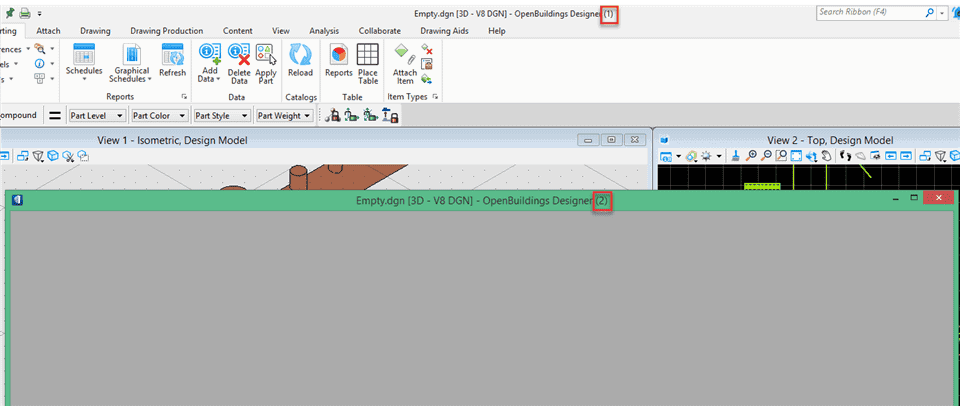
This indicates that the "Open multiple Windows applications" preference is enabled where (1) is the main application window and (2) the secondary window.
Additional note : To pass a window or view any other application window, click on the icon at the top left of the window or view and select the option "Change screen“.
By default, this secondary grey window is usually on another monitor, but it can be moved over the main window of the application, as is the case here. So you can simply drag this grey window on your second monitor, or if you don't need this feature, you can disable it from user preferences.
Additional note : In the generation CONNECT Edition dOpenBuildingsIt is possible to have up to 4 application windows, provided that there are so many monitors. Each is intended to be hosted on a separate screen.

