


Access to user management
NOTE : Any change in an organization's account must be made by the account administrator.
To find out who is the administrator of your account, follow the instructions below:
1. Log in to CONNECT Center Bentley.
2. In the drop-down menu « What do you want to do today? », select « Find my administrator ».
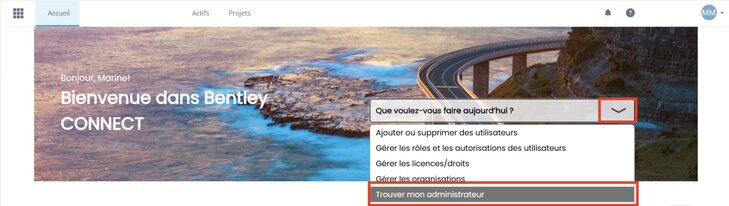
3. On the profile page that displays, scroll down and expand the section entitled « Account administrators ».

NOTE : If no administrator information is listed, this indicates that you are not associated with an account.
To update data, the administrator must visit the user management page. Here's how:
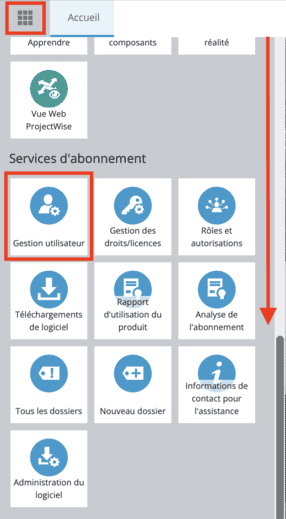
- Log in to CONNECT Center.
- Scroll the service tab down.
- Click « User management ».
Add users
NOTE 1 : If your organization is federated with Bentley IMS, you will not need to add a user manually as indicated below: new users will be created automatically when they first log in.
NOTE 2 : Users can only be associated with one account and must use their ID to access the license associated with their account.
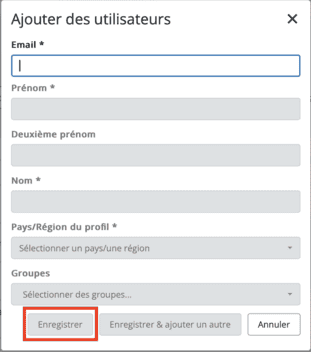
1. On the page « User management », click on the tab « Users », then click the button « Add users » in the upper right corner.

2. Fill in the fields and click the button « Save ».
NOTE : If you are told that the user already exists and you do not have the possibility to add it to the account, this means that the user is linked to another account and must first be deleted from that account.
The user concerned can log in and view his profile to determine which account he is associated with.
Remove Users
NOTES :
- It is recommended to remove any role(s) assigned to users before deleting them.
- If a user you wish to delete is granted a license, be sure to re-allocate this license before deleting the user. If you delete a user to whom a license is granted, the license will display « User not found » And you can't reassign it.
- You cannot remove users who are designated as running contacts, please remove this role first.
- You cannot delete all execution contacts: there must be at least one execution contact designated on the account.
1. On the page « User management », click on the tab « Users », select the user(s) and click the icon « Remove Users » on the screen above the user list.
2. Click on the button « Confirm » to remove selected users.
Assign and Remove Roles
1. Go to the page « User management », click on the tab « Users », then select the user.
2. Click icon « Changing Roles » on the screen above the user list.
3. Select or deselect the roles in the list and click the button « Submit ».
4. Click on the information icon to view a brief description of the role.
5. Select/remove desired roles to assign multiple roles to the user.
Role management
1. On the page « User management », click « Corporate roles ». Here you can view and manage business roles and assigned users.
2. Click on link « Assigned to (x) users » depending on the role you want to manage.
3. This will lead you to the list of users with this role.
NOTE : If the user's roles have been changed/updated by an administrator, the user may need to update his/her privileges in the browser, especially if he/she has access to certain online services. The user shall perform one or more of the following steps:
- The user disconnects from a web browser, reloads the page ignoring the cached content (Ctrl+F5 on the keyboard) and reconnects.
- The user disconnects, clears the browser cache, and then reconnects.
- The user uses another browser.
- The user connects using Incognito/InPrivate mode in the browser.
Management of execution contacts
An enforcement contact is the person of an organization that receives notification of any new or updated licences/rights from Bentley. The process described below is part of the new user management interface that was made available at the end of August 2020.
1. On the page « User management », click « Implementation contacts ».
2. Enter at least three characters of the name or e-mail address of the new execution contact in the field « Select/Search User » and the user will appear in a drop-down list. Select the user (and the country if you add a local run contact) and click the add button that became blue.
NOTE : An organization can only have 10 execution contacts added.
