


Installation of a customer ODBC for Oracle often proves quite tedious. Several reasons for this: first, there is no installer performing this operation automatically, then (this is a consequence of the first point) it is necessary to perform some configuration tasks manually and finally some essential files may not be present.
In the following example, we will configure a client ODBC for one Windows OS 32bits (Windows 2000, XP, Vista, 7, 8 or 8.1).
The very first step will be to download the necessary files from the Oracle site in the general page Instant Client Download. We will select the link to access programs for Windows 32bits as shown below.

At the time of writing this text, Oracle is in version 11, so we will download the most recent files corresponding to this version.

In order not to move away from Oracle's requirements, we will decompress the two files that have been downloaded to a directory [c:Oracle]. ZIP files each containing a basic directory [. momentclient_11_2] so we will ultimately have our files at [c:Oracle instantclient_11_2].
When this first step is completed, it is sufficient (in principle) to run the ODBC_INSTALL.EXE program in the directory indicated above.

The next step is to configure the client so that it can work. Two main things to do:
- Configure system variables necessary for Oracle client operation;
- Configure connection to database.
The configuration of system variables.
To be clean, we recommend setting 3 variables:
- ORACLE_PATH to which we will assign the value « c:Oracle instantclient_11_2 » ;
- TNS_ADMIN to which we will assign the value « %ORACLE_PATH% » ;
- PATH that we will modify to add « %ORACLE_PATH% » At the end of the chain. Be careful not to forget the « ; »He will act as a separator in the path list.
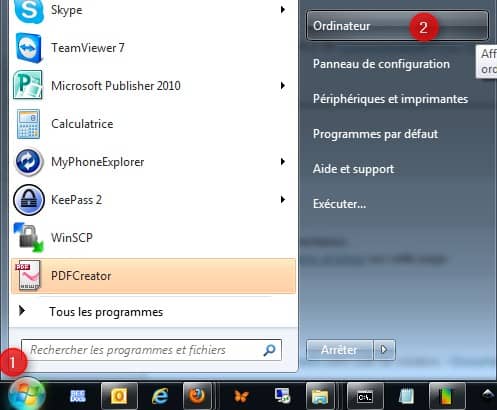
To change the system variables, click on the button « Start » Windows, and then right-click on « Computer ». In the menu appearing, click on « Properties » .

In the screen appearing, click on « Advanced system parameters »...

...and then on the button « Environmental variables... » :

Two lists of variables are presented to you: the first contains local variables to the user, the second of the global variables for all users of the machine. This second list may not be accessible if you do not have administrative rights. The operation of the two lists is identical.
To create the variable ORACLE_PATH, proceed as follows:

After action number (4), the variable will then be shown in the list.

Process the same way to create the variable TNS_ADMIN.

...and finally add the path to Oracle client content variable PATH. As this is already existing, simply search the list, select it and click on the button [Modify].

There is still a final step for the client to be functional and finally have access to the data on the server: create a NST (Transparent Network Substrate...which says everything!) Basically, one NST is simply a small configuration to tell the client how to access the server(s)... and finally it's not very complicated.
File « TNSNAMES.ORA » Containing the NST must be in the directory mentioned in the variable TNS_ADMIN. This is a text file that can easily be edited with « Notepad ».
An example is:
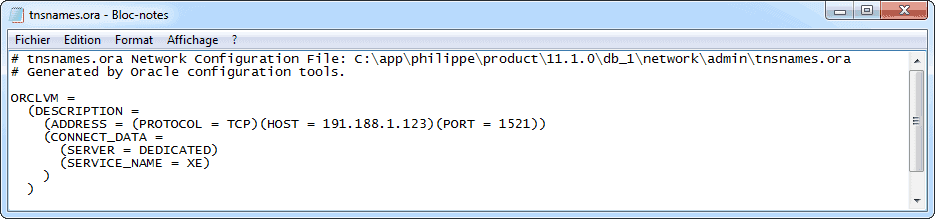
- ORCLVM: is a free (but unique) name naming the TNS. It will be found for example when setting up the DSN ODBC.
- PROTOCOL = TCP: indicates the type of protocol used for the client/server dialog. Generally, this is TCP.
- HOST : Address of server on network.
- PORT: Port on which the database « Listen » requests from clients. The application performing this server-side task is called LISTEN.
- SERVICE_NAME: Name of the database service installed on the server.
In principle, if you are in the best of the worlds and the above steps have been done correctly you should have the opportunity to create an ODBC DSN and test it successfully. However, there may be concerns.
ORA-12154
An error occurred in the configuration of variables ORACLE_PATH or TNS_ADMIN. This usually leads to an error ORA-12154 :
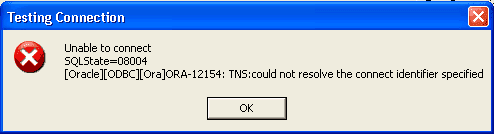
In this case, the value of ORACLE_PATH and TNS_ADMIN variables will be checked and possibly corrected. It is also possible that a restart of the client machine solves the problem.
ODBC Oracle instantclient_11_2 driver installation routines could be loaded due to system error code 126.

Typically, this is a DLL dependency error. In general, this is corrected quite easily by copying one or two DLL in the directory [c:Oracle instantclient_11_2]...but still have to find out what these DLLs are... For this you can use the tool Dependency Walker free download.

When running this tool, it is possible to load a DLL and if dependencies are not found, tool highlight them. In the case of Oracle client, two DLLs are to be checked as a matter of priority: SQORA32.DLL and SQORAS32.DLL.

In this case, Visual Studio 2003 runtime is not present on the client machine. The component cannot therefore be found. Many websites offer to download this type of file, a simple search will find it. Copy it to the directory [c:Oracle instantclient_11_2]. If the error persists, it is probably another missing dependency. Recheck the above two DLLs using Dependency Walker and repeat the operation until it works.
NB : The above solutions may not make it possible to correct all the installation errors of the Oracle ODBC client but to correct the most common ones.
