


How to add raw data to a table and export it to Excel
Problem
For any element, raw data is this property that cannot be added via the planning tool. However, for the purposes of the project, this data must be exported to an Excel sheet or may be placed as a table in a DGN file. These particular data are only visible via the OpenBuildings Properties window (which is MicroStation).
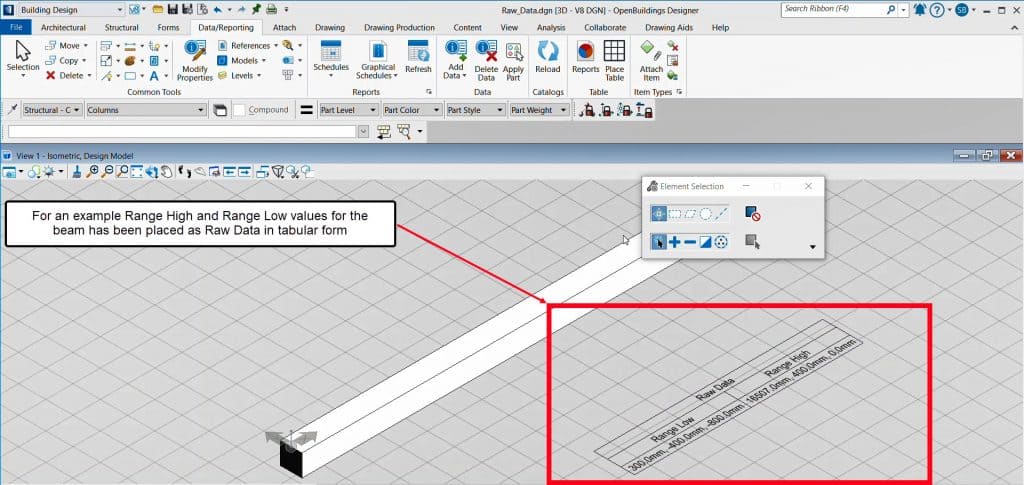
Here we have shown for example how this can be done for ‘Range High' and Range Low'.
Solution
For this particular case, we used the values "Range High" and "Range Low" as an example,
1. Need to access the reporting tool and create a "Report Definition"
2. Then, in the "Properties" box that appears in the window, under the "Objects" tab, click the Browse button. Then check the « Elements » in the list and click on « OK ».
3. After that, right-click on "Column" and select "Add Column" from the drop-down menu.
4. Then the "Select a column to add" dialog box will appear. Here, the "Element" option must be developed to see all available categories.
5. And the « Gross data » all down can be found and from there, select « High Range » and « Low ».
6. Then, in the top ribbon of the Report dialog box, click "Export Results". After giving it a name, the Excel file will be created at the desired location.
7. Then close the "Report" dialog. And now go to the "Place a Table" tool.
8. In the Set Table dialog box, select the icon « Report ».
9. Then, in the "Report" drop-down list, select the newly created report definition. And then you can easily place it as a table in the DGN
