NOTE : This procedure can only be carried out by the account administrator.
To find out who is the administrator of your account, follow the instructions below:
1. Log in to CONNECT Center Bentley.
2. In the drop-down menu « What do you want to do today? », select « Find my administrator ».
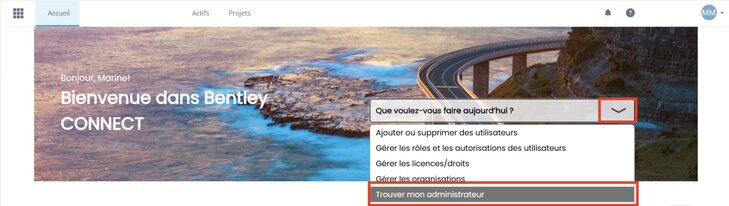
3. On the profile page that displays, scroll down and expand the section entitled « Account administrators ».

NOTE : If no administrator information is listed, this indicates that you are not associated with an account.
Licensing a user
1. Connectez-vous à votre compte Bentley Systems en cliquant sur that connection. You then arrive in the gate « CONNECT Center ».

2. Click the menu in the top left corner of the page and scroll to the section « Subscription services ». Then select the tab « Rights management/licences ».

3. Once on the page « Rights management/licences », choose the subscription type « Virtuoso ».

4. La licence que vous venez d’acheter devrait s’afficher ci-dessous. Après avoir sélectionné le produit, cliquez sur le bouton vert à droite du nom du produit pour attribuer les droits de la licence à l’utilisateur final que vous aurez préalablement ajouté au compte (la marche à suivre se trouve à la fin de ce document).


5. Une nouvelle fenêtre s’ouvrira et dans la liste déroulante, sélectionnez l’utilisateur souhaité avant de cliquer sur « Attribuer ».

6. Une fois que cela est fait, l’adresse mail de l’utilisateur final de la licence devrait s’afficher dans le champ « Utilisateur assigné ».

7. Cet utilisateur recevra ensuite un mail l’informant de l’attribution du droit de la licence et il pourra ensuite télécharger le logiciel pour commencer à l’utiliser.

User management
NOTE : This procedure can only be carried out by the account administrator.
1. Connectez-vous à votre compte Bentley Systems en cliquant sur that connection. You then arrive in the gate « CONNECT Center ».
2. Click the menu in the top left corner of the page and scroll to the section « Subscription services ». Then select the tab « User management ».

3. Once on the page « User management», click « Add users ».

4. In the form that appears, fill in the requested information. Then click on « Save » or « Save & Add Another » if you want to add more than one user.

5. For large companies, you can add a list of users by clicking the button « Block operations » and by importing a .csv file.

6. Regardless of the method chosen, once users are added, they will receive an email asking them to validate their accounts.
Managing user roles
NOTE : This procedure can only be carried out by the account administrator.
1. Connectez-vous à votre compte Bentley Systems en cliquant sur that connection. You then arrive in the gate « CONNECT Center ».
2. Click the menu in the top left corner of the page and scroll to the section « Subscription services ». Then select the tab « User management ».
3. On the page « User management », shows the list of all users in your account. Select the small box next to the user to which you want to add a role and then click the icon « Changing Roles ».

4. A new window with all the roles opens. Select the role(s) you want to assign to the user and click on « Submit » to validate the selection. You can learn more about the different roles by clicking on the small button on their right.

5. You can check the roles assigned to a user by clicking on his name.A new window will open. To the right, in the part « Membership », you will see all the roles that the user has.